Step 11 — Review & Submit
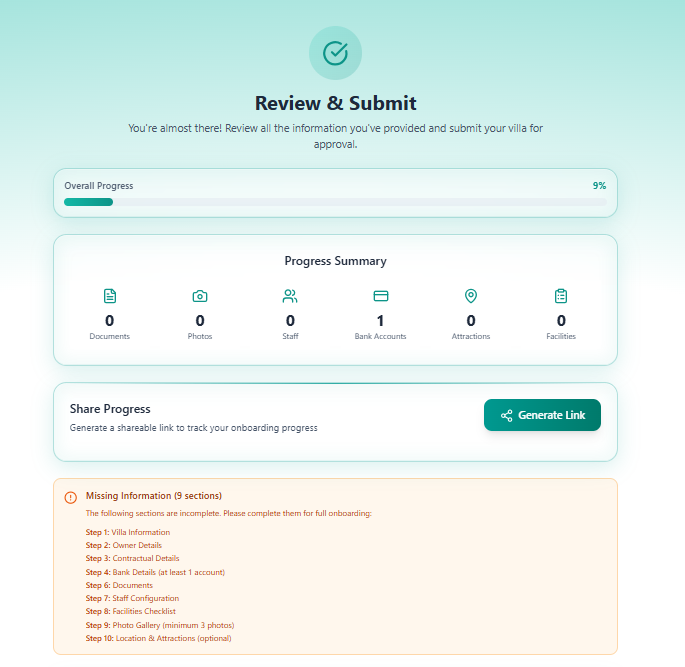
Step 11 of 11 — Review & Submit is the final step. It shows a full summary of onboarding progress, highlights any missing information, and lets you submit the villa for approval.
“You’re almost there! Review all the information you’ve provided and submit your villa for approval.”
Overall Progress Bar
Section titled “Overall Progress Bar”A progress bar at the top shows the total completion percentage across all steps. You must reach sufficient completion before submitting.
Progress Summary
Section titled “Progress Summary”Six counters give a quick overview of what has been filled in:
| Counter | Description |
|---|---|
| Documents | Number of documents uploaded (Step 6) |
| Photos | Number of photos uploaded (Step 9) |
| Staff | Number of staff members configured (Step 7) |
| Bank Accounts | Number of bank accounts added (Step 4) |
| Attractions | Number of local attractions added (Step 10) |
| Facilities | Number of facility items completed (Step 8) |
Share Progress
Section titled “Share Progress”Generate a shareable link to the onboarding session — useful for sharing progress with a manager or colleague.
Click Generate Link to create the URL. This is the same link available from the My Villas page using the Share icon.
Missing Information Panel
Section titled “Missing Information Panel”If any required or recommended sections are incomplete, an orange warning panel lists them clearly:
Missing Information (9 sections) The following sections are incomplete. Please complete them for full onboarding:
| Step | Requirement |
|---|---|
| Step 1: Villa Information | Required |
| Step 2: Owner Details | Required |
| Step 3: Contractual Details | Required |
| Step 4: Bank Details | At least 1 account required |
| Step 6: Documents | Recommended |
| Step 7: Staff Configuration | Recommended |
| Step 8: Facilities Checklist | Recommended |
| Step 9: Photo Gallery | Minimum 3 photos required |
| Step 10: Location & Attractions | Optional |
Each item in the list is a clickable link that takes you directly back to that step to complete it.
Submitting the Villa
Section titled “Submitting the Villa”Once all required steps are complete and the progress bar is sufficiently filled:
- Review the full summary
- Confirm data accuracy
- Click Submit to send the villa for approval
On submission:
- Villa status changes from
DRAFT→COMPLETED - The session is locked from further edits (unless reopened by an admin)
- An entry is created in the Activity Log
- The Admin Dashboard reflects the new completed count
Wizard Complete — Full Flow
Section titled “Wizard Complete — Full Flow”flowchart TD S1[Step 1\nVilla Information] --> S2[Step 2\nOwner Details] S2 --> S3[Step 3\nContractual Details] S3 --> S4[Step 4\nBank Details] S4 --> S5[Step 5\nAccount Credentials] S5 --> S6[Step 6\nDocuments Upload] S6 --> S7[Step 7\nStaff Configuration] S7 --> S8[Step 8\nFacilities Checklist] S8 --> S9[Step 9\nPhoto Upload] S9 --> S10[Step 10\nLocation & Attractions] S10 --> S11[Step 11\nReview & Submit] S11 -->|All required fields complete| DONE[✅ Villa COMPLETED\nStatus: Approved] S11 -->|Missing required sections| BACK[↩ Return to\nincomplete steps]Navigation
Section titled “Navigation”| Control | Action |
|---|---|
| Previous | Return to Step 10 — Location & Attractions |
| Save Progress | Save current state |
| Submit | Submit villa for approval — only active when ready |