Asset Pool
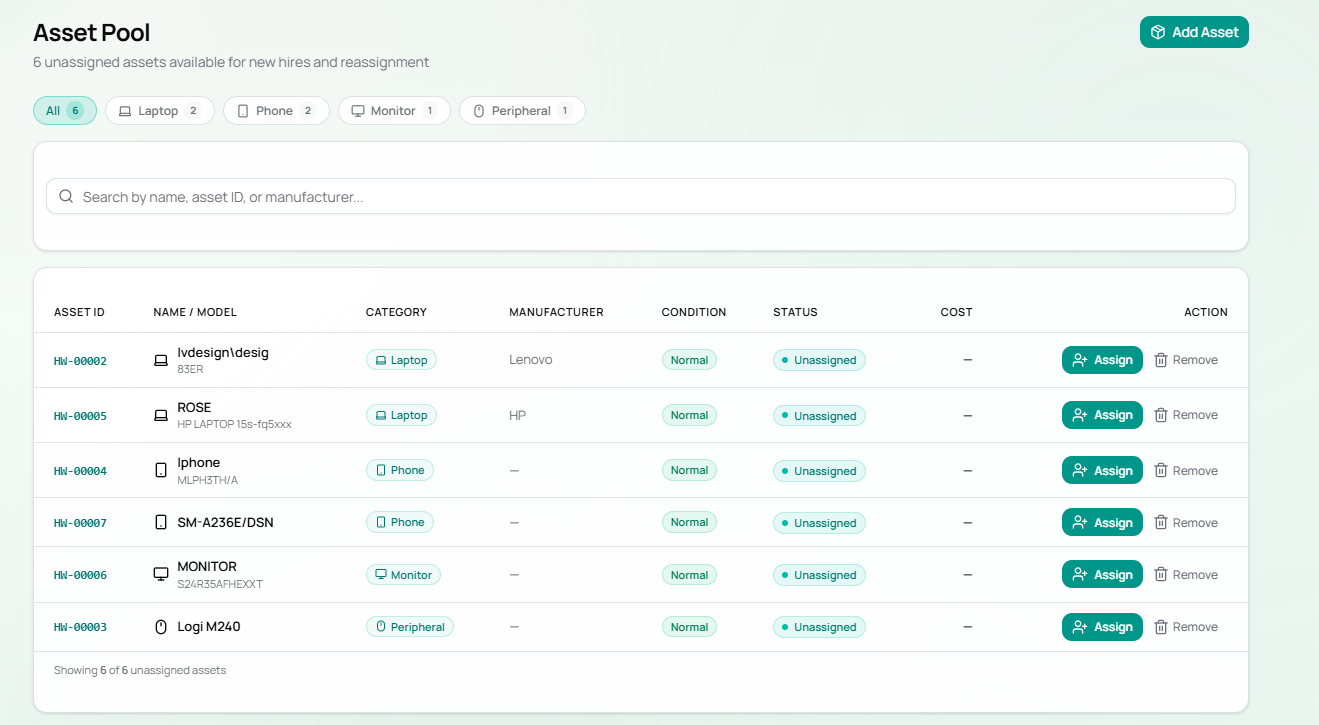
The Asset Pool is the holding area for all unassigned equipment. Assets land here when they are created without an employee assignment, or when they are returned from an employee.
Currently there are 6 unassigned assets in the pool.
Navigate to Asset Pool in the top navigation bar.
Page Layout
Section titled “Page Layout”| Element | Description |
|---|---|
| Category filter tabs | Quick filter by hardware type: All / Laptop / Phone / Monitor / Peripheral |
| Search bar | Search by name, asset ID, or manufacturer |
| + Add Asset button | Shortcut to register new hardware directly into the pool |
Asset Pool Table Columns
Section titled “Asset Pool Table Columns”| Column | Description |
|---|---|
| Asset ID | Unique identifier (e.g. HW-00002) — click to open asset detail |
| Name / Model | Asset name with model number below |
| Category | Hardware type badge |
| Manufacturer | Brand name |
| Condition | Physical condition (e.g. Normal) |
| Status | Always Unassigned in this view |
| Cost | Purchase cost in THB, or — if not recorded |
| Action | Assign button (teal) and Remove link |
Current Asset Pool Contents
Section titled “Current Asset Pool Contents”| Asset ID | Name | Category | Manufacturer | Condition |
|---|---|---|---|---|
| HW-00002 | Ivdesign\desig (83ER) | Laptop | Lenovo | Normal |
| HW-00005 | ROSE (HP LAPTOP 15s-fq5xxx) | Laptop | HP | Normal |
| HW-00004 | Iphone (MLPH3TH/A) | Phone | — | Normal |
| HW-00007 | SM-A236E/DSN | Phone | — | Normal |
| HW-00006 | MONITOR (S24R35AFHEXXT) | Monitor | — | Normal |
| HW-00003 | Logi M240 | Peripheral | — | Normal |
Assigning from the Pool
Section titled “Assigning from the Pool”- Find the asset using the category tabs or search
- Click the Assign button (teal) on the right
- Select the employee from the dropdown
- Confirm — the asset moves out of the pool and appears in the employee’s profile
See Assigning an Asset for the full workflow.
How Assets Enter the Pool
Section titled “How Assets Enter the Pool”An asset appears in the Asset Pool when:
- It is created with no employee selected (left as
— Unassigned (Asset Pool) —) - It is returned / unassigned from an employee profile
Dashboard Connection
Section titled “Dashboard Connection”The Unassigned counter on the Dashboard (currently showing 6) always reflects the live Asset Pool count.