Step 4 — Bank Details
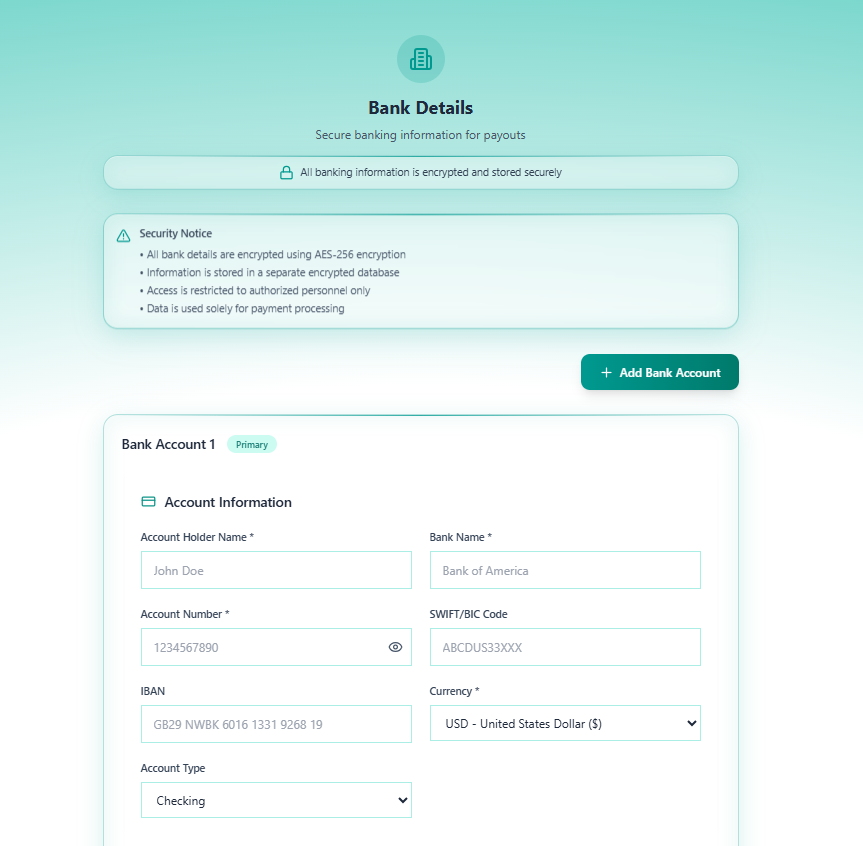
Step 4 of 11 — Bank Details collects the owner’s banking information for revenue payouts. All data is encrypted at rest.
“All banking information is encrypted and stored securely”
Security
Section titled “Security”Security Notice:
- All bank details are encrypted using AES-256 encryption
- Information is stored in a separate encrypted database
- Access is restricted to authorised personnel only
- Data is used solely for payment processing
Multiple Bank Accounts
Section titled “Multiple Bank Accounts”You can add more than one bank account — useful for owners who receive payouts in different currencies. Click + Add Bank Account to add additional accounts.
The first account is automatically marked as Primary and will be used for all default payouts.
Account Information
Section titled “Account Information”Each bank account card contains two sub-sections:
Account Information
Section titled “Account Information”| Field | Required | Description | Example |
|---|---|---|---|
| Account Holder Name | Yes | Name on the bank account | John Doe |
| Bank Name | Yes | Name of the bank | Kasikorn Bank, Bangkok Bank |
| Account Number | Yes | Bank account number (masked by default — click 👁️ to reveal) | 1234567890 |
| SWIFT / BIC Code | No | International bank identifier code | ABCDUS33XXX |
| IBAN | No | International Bank Account Number (Europe/UK) | GB29 NWBK 6016 1331 9268 19 |
| Currency | Yes | Payout currency — select from dropdown | USD, THB, EUR, GBP |
| Account Type | No | Type of account — dropdown | Checking, Savings |
Branch Information
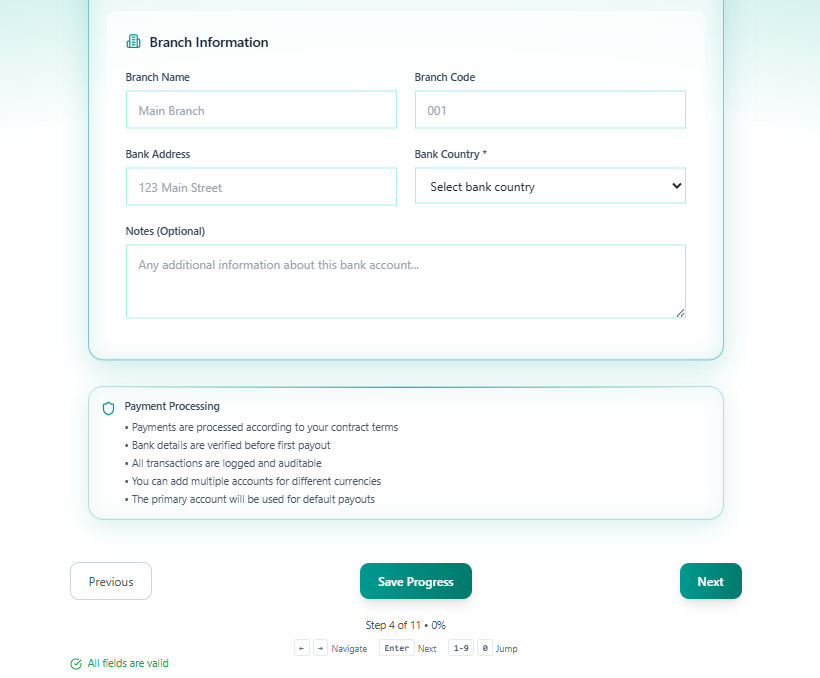
Section titled “Branch Information”| Field | Required | Description | Example |
|---|---|---|---|
| Branch Name | No | Bank branch name | Main Branch, Phuket Branch |
| Branch Code | No | Branch identifier code | 001 |
| Bank Address | No | Physical address of the bank branch | 123 Main Street |
| Bank Country | Yes | Country where the bank is located | Thailand |
| Notes | No | Any additional information about this account | Free text |
Payment Processing Rules
Section titled “Payment Processing Rules”
- Payments are processed according to your contract terms (set in Step 3)
- Bank details are verified before the first payout
- All transactions are logged and auditable
- You can add multiple accounts for different currencies
- The primary account will be used for all default payouts
Navigation
Section titled “Navigation”| Control | Action |
|---|---|
| Previous | Return to Step 3 — Contractual Details |
| Save Progress | Save without advancing |
| Next | Save and advance to Step 5 — Account Credentials |
Proceed to Step 5 — Account Credentials.