Assets Registry
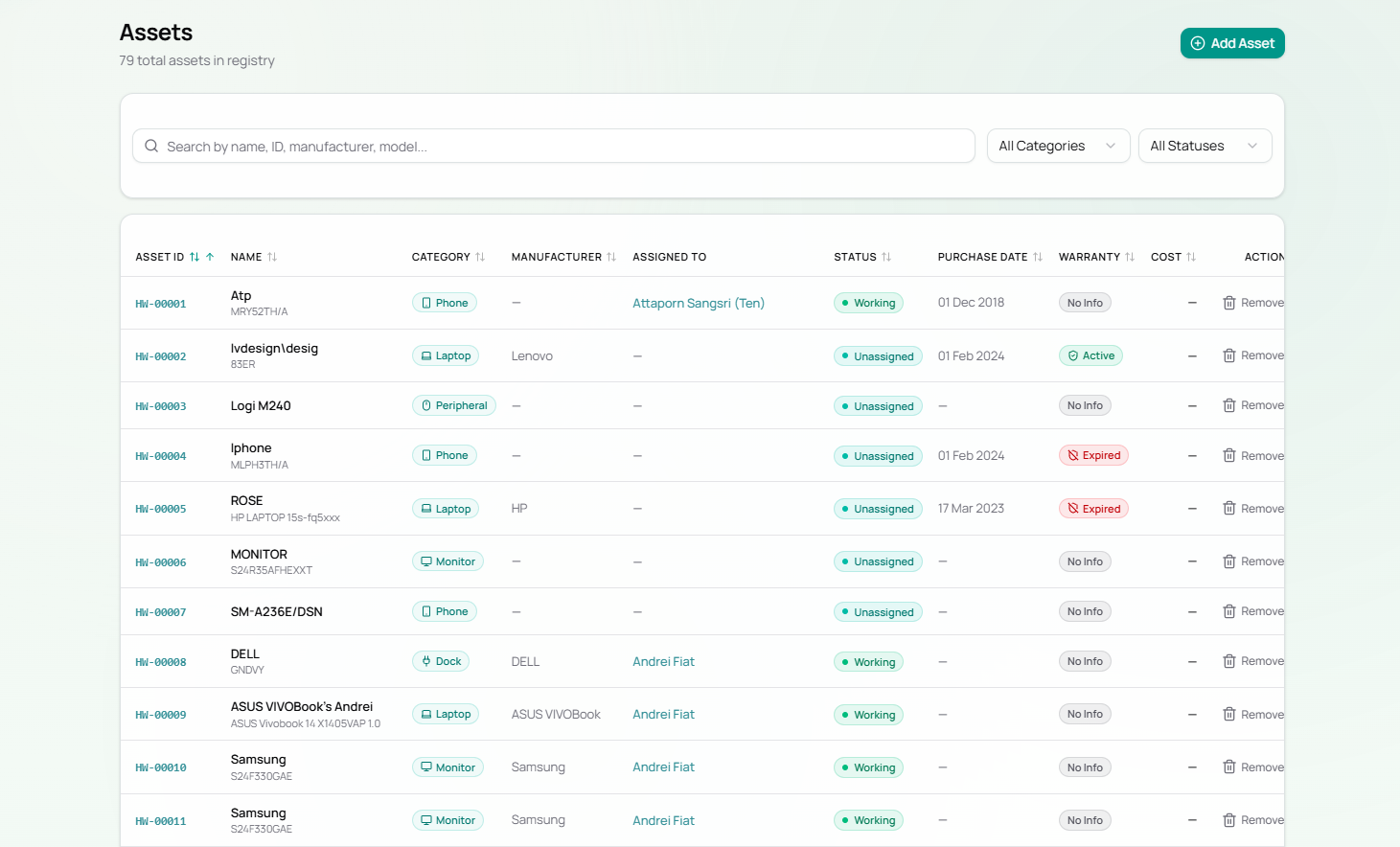
The Assets page is the master list of every hardware item registered in the system. It currently holds 79 assets, each with a unique auto-assigned ID in the format HW-XXXXX.
Page Layout
Section titled “Page Layout”At the top you will find:
- A search bar — search by name, asset ID, manufacturer, or model number
- All Categories filter dropdown
- All Statuses filter dropdown
- + Add Asset button (top right corner)
Asset Table Columns
Section titled “Asset Table Columns”| Column | Description |
|---|---|
| Asset ID | Unique identifier, auto-assigned (e.g. HW-00001). Clicking it opens the asset detail view. |
| Name | Asset name with model number shown below in grey |
| Category | Hardware type badge |
| Manufacturer | Brand (e.g. Apple, Dell, Samsung, Lenovo) |
| Assigned To | Employee name as a clickable link, or blank if unassigned |
| Status | Working (green) or Unassigned (grey) |
| Purchase Date | Date the asset was acquired |
| Warranty | Active (green), Expired (red badge), or No Info (grey) |
| Cost | Purchase cost in THB, or — if not recorded |
| Action | Remove button to delete the asset |
Status Reference
Section titled “Status Reference”| Status | Colour | Meaning |
|---|---|---|
Working | Green | Assigned to an employee, operational |
Unassigned | Grey | In the asset pool, available for assignment |
Warranty Reference
Section titled “Warranty Reference”| Status | Colour | Meaning |
|---|---|---|
Active | Green with shield icon | Warranty currently valid |
Expired | Red with crossed shield | Warranty has ended — renewal needed |
No Info | Grey | No warranty data recorded |
Asset Categories
Section titled “Asset Categories”| Category | Current Count |
|---|---|
| Laptop | 20 |
| Monitor | 20 |
| Peripheral | 19 |
| Phone | 11 |
| Docking Station | 6 |
| Storage | 3 |
| Total | 79 |
Asset ID Format
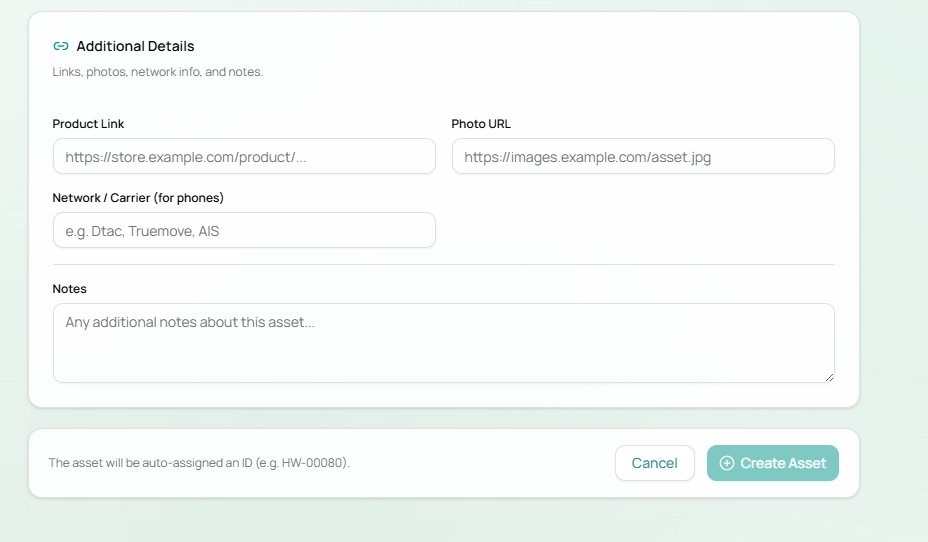
Section titled “Asset ID Format”IDs are auto-generated sequentially on asset creation — you cannot set them manually:
HW-00001 ← oldestHW-00002...HW-00079 ← most recent at time of writingHW-00080 ← next to be assignedAdding a New Asset
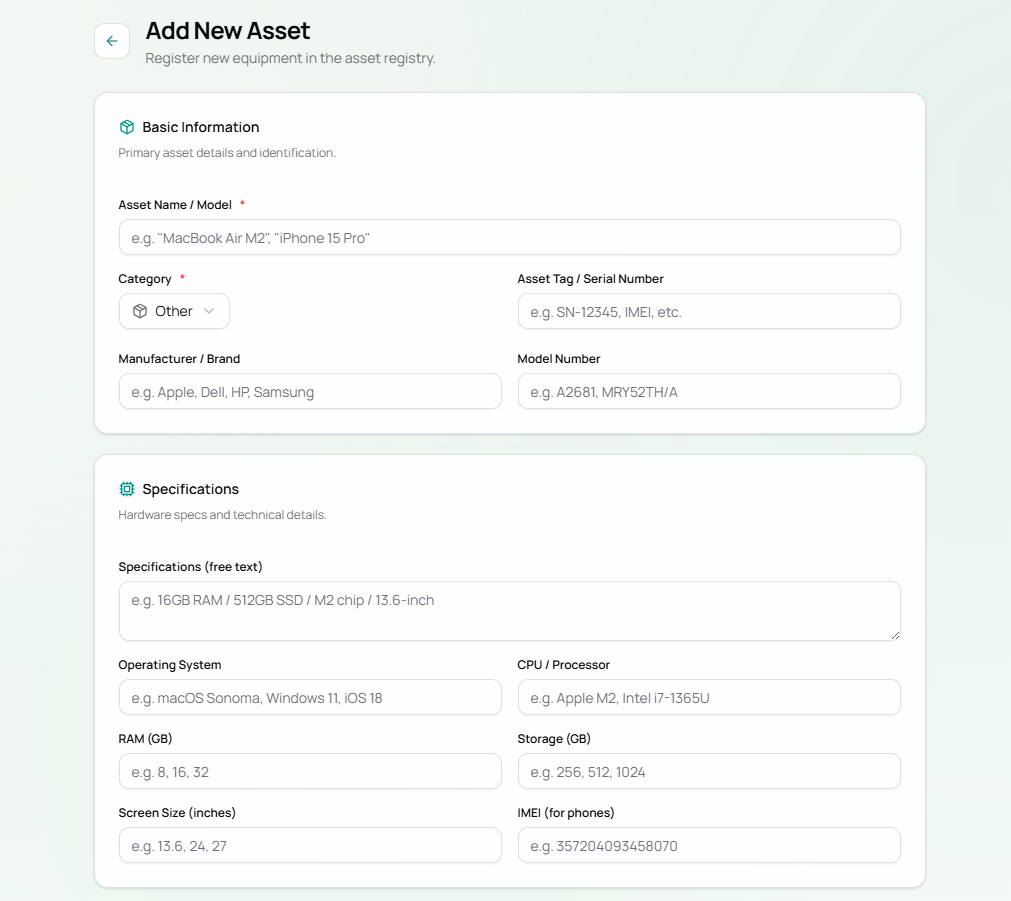
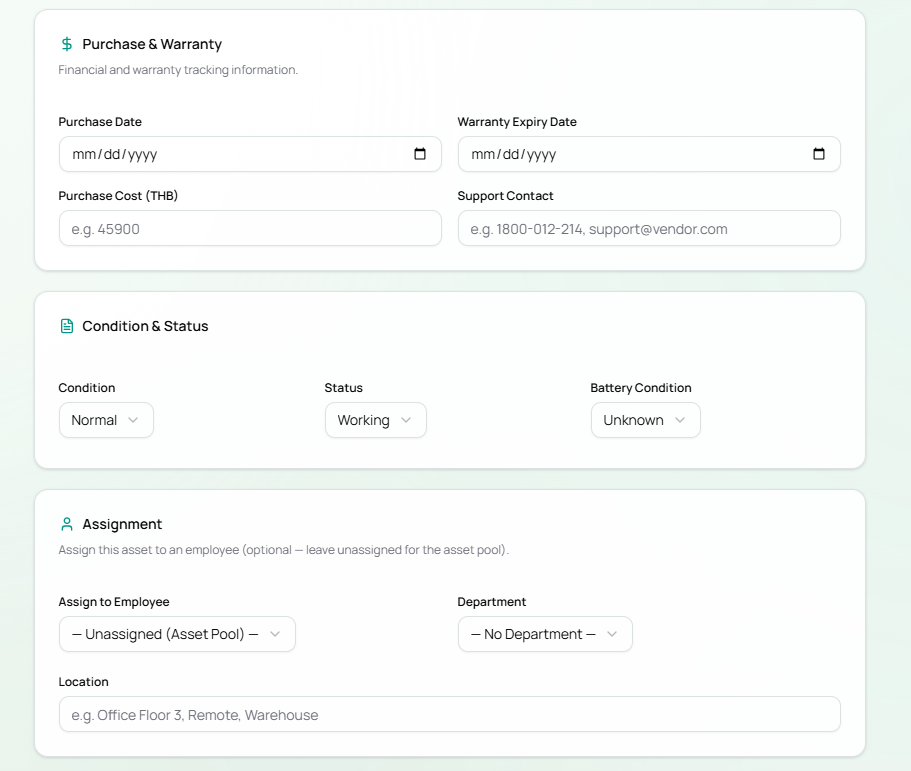
Section titled “Adding a New Asset”Click + Add Asset in the top right. See Adding Equipment for the full step-by-step guide.