My Villas
The My Villas page is the main landing page for staff. It shows all villa onboarding sessions you have created, their current status, and progress through the 11-step wizard.
Navigate to: obv.inspiringlivingsolutions.com/my-villas
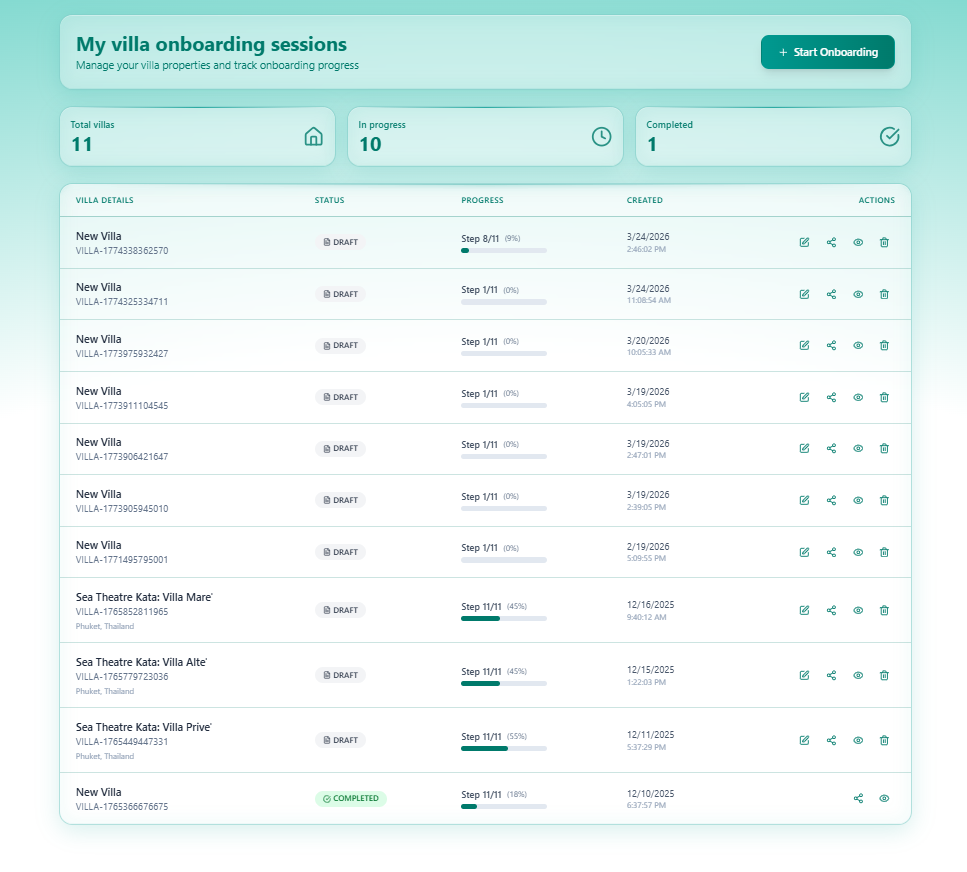
Page Layout
Section titled “Page Layout”| Element | Description |
|---|---|
| + Start Onboarding | Creates a new villa session and opens the wizard at Step 1 |
| KPI cards | Quick summary: Total Villas, In Progress, Completed |
| Villa table | All sessions with status, progress, date, and actions |
Summary Cards
Section titled “Summary Cards”| Card | Current | Description |
|---|---|---|
| Total Villas | 9 | All onboarding sessions ever created |
| In Progress | 8 | Sessions with status DRAFT |
| Completed | 1 | Sessions with status COMPLETED |
Villa Table Columns
Section titled “Villa Table Columns”| Column | Description |
|---|---|
| Villa Details | Villa name (e.g. Sea Theatre Kata: Villa Mare') and unique Villa ID below (e.g. VILLA-1765852811965). Location shown in teal if entered. |
| Status | DRAFT (grey document icon) or COMPLETED (green badge) |
| Progress | Current step (e.g. Step 11/11) and percentage bar with % value |
| Created | Date and time the session was started |
| Actions | Four icon buttons — Edit, Share, View, Delete |
Status Reference
Section titled “Status Reference”| Status | Meaning |
|---|---|
DRAFT | Session is in progress — the wizard has been started but not submitted |
COMPLETED | All 11 steps were completed and the villa was submitted |
Action Buttons
Section titled “Action Buttons”| Icon | Action |
|---|---|
| ✏️ Edit | Re-open the wizard to continue filling in steps |
| 🔗 Share | Share the onboarding session link |
| 👁️ View | View the villa profile (read-only) |
| 🗑️ Delete | Delete the onboarding session (irreversible) |
Villa ID Format
Section titled “Villa ID Format”Every villa session is assigned a unique timestamp-based ID on creation:
VILLA-1773975932427VILLA-1765852811965This ID appears throughout the system — in the admin dashboard, owner records, document uploads, and email logs.
Starting a New Onboarding
Section titled “Starting a New Onboarding”Click + Start Onboarding in the top right. A new session is created immediately with:
- Status:
DRAFT - Name:
New Villa(until Step 1 is completed) - Progress:
Step 1/11 (0%)
You are taken directly to Step 1 — Villa Information of the wizard.
See Step 1 — Villa Information to begin.
Progress Reference
Section titled “Progress Reference”| Progress Display | Meaning |
|---|---|
Step 1/11 (0%) | Just started — no data saved yet |
Step 11/11 (45%) | Reached the final step but not all fields complete |
Step 11/11 (100%) | All required fields filled — ready to submit |
COMPLETED badge | Submitted successfully |