Requests
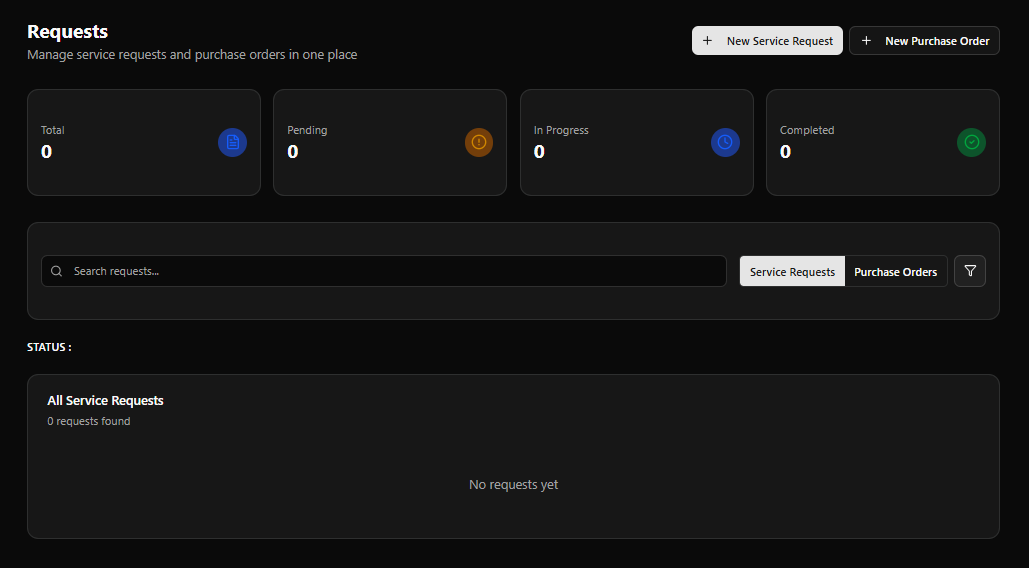
The Requests module combines two intake flows into one page — Service Requests for maintenance and service needs, and Purchase Orders for procuring parts or services. Both are accessible from the same dashboard with a shared search and filter interface.
Page Header
Section titled “Page Header”| Element | Description |
|---|---|
| Title | Requests |
| Subtitle | Manage service requests and purchase orders in one place |
| + New Service Request | Opens the New Service Request form |
| + New Purchase Order | Opens the New Purchase Order form |
Status KPI Cards
Section titled “Status KPI Cards”| Card | Color | Description |
|---|---|---|
| Total | Blue | All requests in the system |
| Pending | Amber | Requests awaiting action |
| In Progress | Blue | Requests currently being handled |
| Completed | Green | Resolved requests |
Search & View Controls
Section titled “Search & View Controls”| Control | Description |
|---|---|
| Search requests… | Full-text search across all requests |
| Service Requests tab | Shows the service request list (default) |
| Purchase Orders tab | Switches to the purchase order list |
| Filter icon | Apply additional filters |
The STATUS : panel below shows the filtered list. When empty:
All Service Requests 0 requests found No requests yet
New Service Request Form
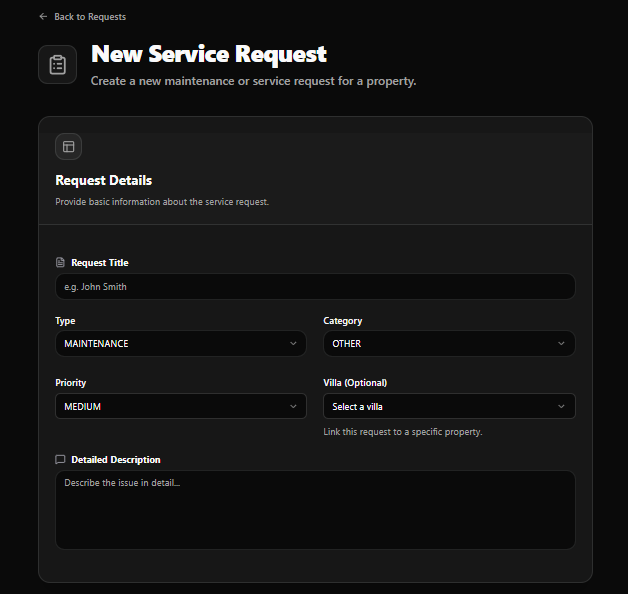
Section titled “New Service Request Form”Access via + New Service Request. A back link (← Back to Requests) is shown at the top.
Title: New Service Request Subtitle: Create a new maintenance or service request for a property.
Request Details
Section titled “Request Details”Provide basic information about the service request.
| Field | Required | Notes |
|---|---|---|
| Request Title | Yes | Brief label (e.g. John Smith) |
| Type | Yes | Default: MAINTENANCE |
| Category | Yes | Default: OTHER |
| Priority | Yes | Default: MEDIUM |
| Villa | No | Link this request to a specific property |
| Detailed Description | No | Checkbox to expand — free-text field: Describe the issue in detail… |
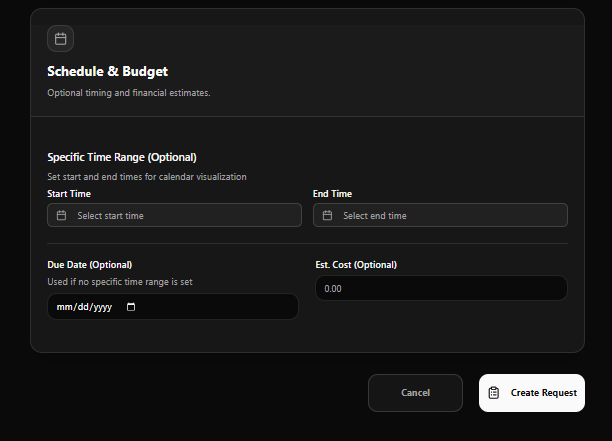
Schedule & Budget
Section titled “Schedule & Budget”Optional timing and financial estimates.
Specific Time Range (Optional)
Section titled “Specific Time Range (Optional)”Set start and end times for calendar visualisation
| Field | Notes |
|---|---|
| Start Time | Datetime picker |
| End Time | Datetime picker |
Date & Cost
Section titled “Date & Cost”| Field | Notes |
|---|---|
| Due Date | Date picker — used if no specific time range is set |
| Est. Cost | Optional estimated cost, default 0.00 |
Form Actions
Section titled “Form Actions”| Button | Action |
|---|---|
| Cancel | Discard and return to Requests |
| Create Request | Submit the service request |
New Purchase Order Form
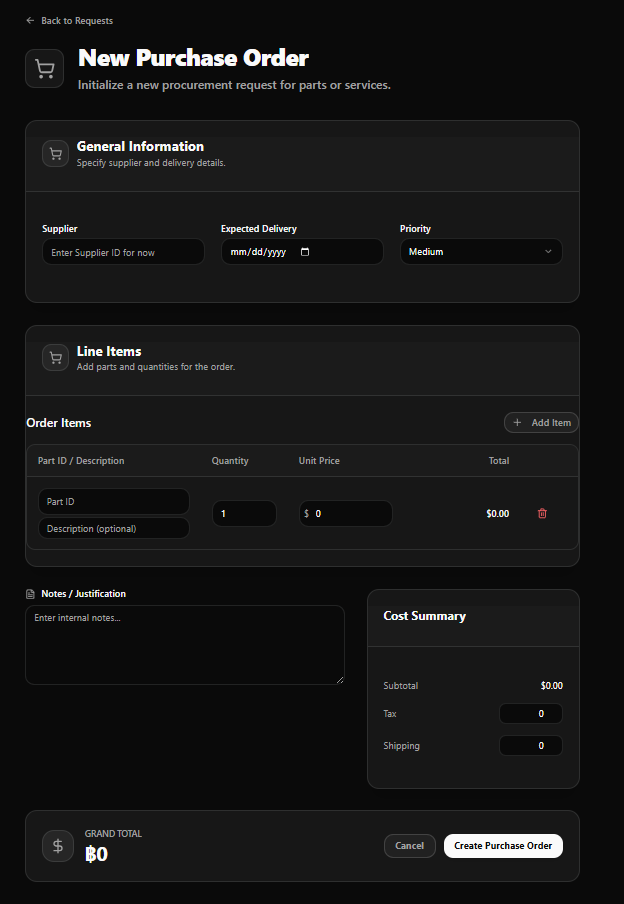
Section titled “New Purchase Order Form”Access via + New Purchase Order. A back link (← Back to Requests) is shown at the top.
Title: New Purchase Order Subtitle: Initialize a new procurement request for parts or services.
General Information
Section titled “General Information”Specify supplier and delivery details.
| Field | Notes |
|---|---|
| Supplier | Enter Supplier ID (free text for now) |
| Expected Delivery | Date picker |
| Priority | Default: Medium |
Line Items
Section titled “Line Items”Add parts and quantities for the order.
The Order Items table has one row by default, with + Add Item to add more:
| Column | Notes |
|---|---|
| Part ID | Identifier for the part |
| Description | Optional description |
| Quantity | Default: 1 |
| Unit Price | Default: $0 |
| Total | Auto-calculated (Quantity × Unit Price) |
| Delete | Red trash icon to remove the line item |
Notes / Justification
Section titled “Notes / Justification”Free-text field for internal notes or justification for the purchase.
Cost Summary
Section titled “Cost Summary”Displayed alongside the Notes field:
| Row | Value |
|---|---|
| Subtotal | Sum of all line items |
| Tax | Editable field, default 0 |
| Shipping | Editable field, default 0 |
Grand Total
Section titled “Grand Total”Displayed in the form footer as GRAND TOTAL ฿0 — updates in real time as line items and costs are entered.
Form Actions
Section titled “Form Actions”| Button | Action |
|---|---|
| Cancel | Discard and return to Requests |
| Create Purchase Order | Submit and create the PO |
Request Flow
Section titled “Request Flow”flowchart TD A{Request Type?} --> B[Service Request] A --> C[Purchase Order]
B --> D[Fill Request Details\nTitle · Type · Category · Priority · Villa] D --> E[Add Schedule & Budget optional] E --> F[Create Request\nStatus: Pending] F --> G[Manager reviews\nConverts to Work Order if needed]
C --> H[Fill General Information\nSupplier · Delivery · Priority] H --> I[Add Line Items\nPart ID · Qty · Unit Price] I --> J[Add Notes & Review Cost Summary] J --> K[Create Purchase Order]