Reports
The Reports page provides a full analytical view of the hardware fleet. It is divided into five tabs, each covering a different dimension of the data.
Navigate to Reports in the top navigation bar. The sub-tabs appear at the top of the page.
Tab 1 — Overview
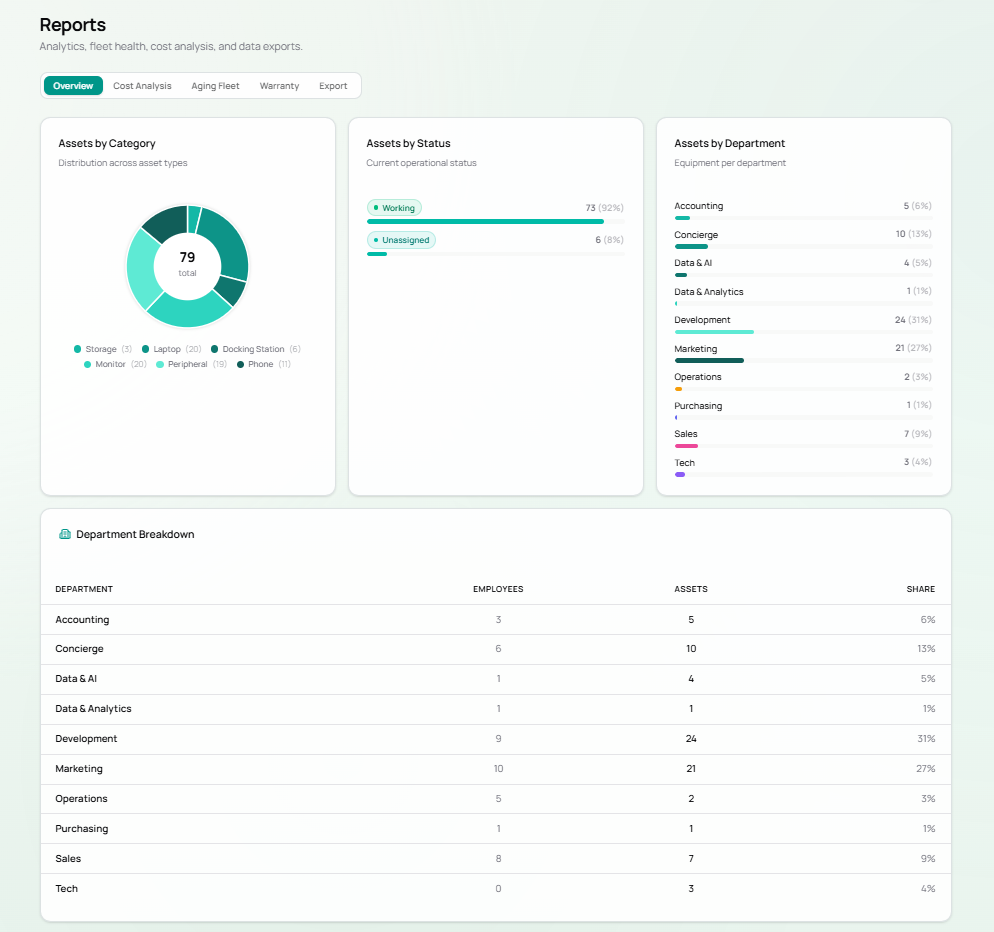
Section titled “Tab 1 — Overview”A high-level snapshot of the entire hardware fleet.
Charts
Section titled “Charts”| Chart | Description |
|---|---|
| Assets by Category | Donut chart — distribution across Laptop, Monitor, Peripheral, Phone, Docking Station, Storage |
| Assets by Status | Bar — Working (73 / 92%) vs Unassigned (6 / 8%) |
| Assets by Department | Horizontal bars — equipment per department with percentage share |
Department Breakdown Table
Section titled “Department Breakdown Table”Full breakdown of employees and assets per department:
| Department | Employees | Assets | Share |
|---|---|---|---|
| Development | 9 | 24 | 31% |
| Marketing | 10 | 21 | 27% |
| Concierge | 6 | 10 | 13% |
| Sales | 8 | 7 | 9% |
| Accounting | 3 | 5 | 6% |
| Data & AI | 1 | 4 | 5% |
| Tech | 0 | 3 | 4% |
| Operations | 5 | 2 | 3% |
| Data & Analytics | 1 | 1 | 1% |
| Purchasing | 1 | 1 | 1% |
Tab 2 — Cost Analysis
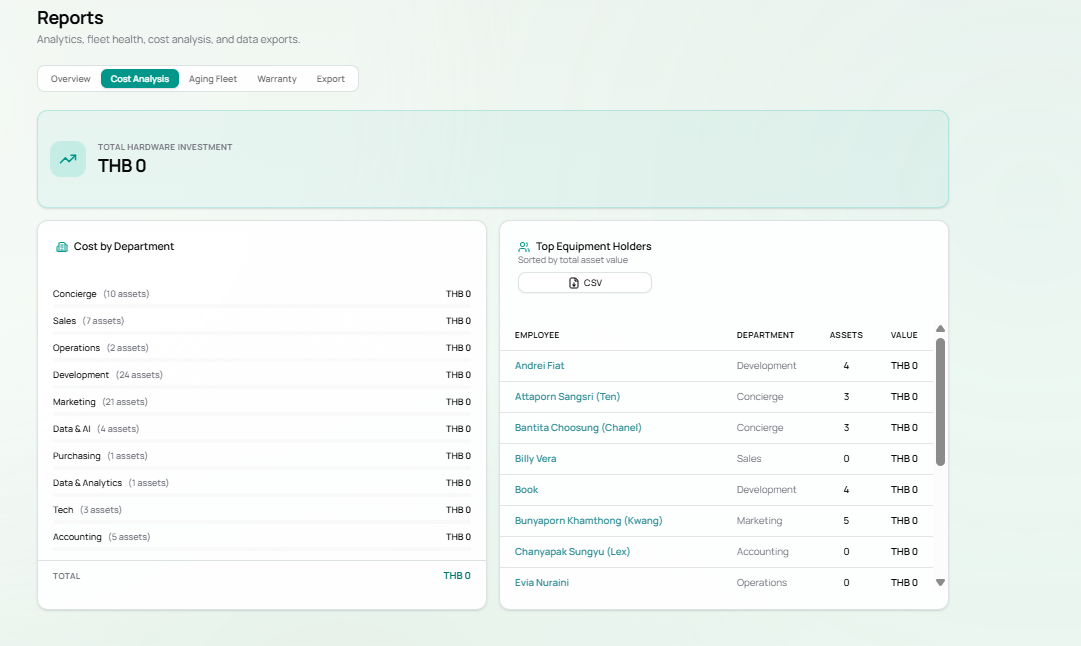
Section titled “Tab 2 — Cost Analysis”Financial view of hardware investment across the organisation.
Total Hardware Investment
Section titled “Total Hardware Investment”Displays the total THB value of all assets with recorded costs. Currently shows THB 0 because purchase costs have not yet been entered for most assets.
Note: To see meaningful cost data, ensure Purchase Cost (THB) is filled in when adding or editing assets.
Cost by Department
Section titled “Cost by Department”Lists each department with its total asset count and combined THB value. Useful for budget allocation reviews.
Top Equipment Holders
Section titled “Top Equipment Holders”A ranked table of employees sorted by total asset value:
| Column | Description |
|---|---|
| Employee | Staff member name (clickable link to profile) |
| Department | Their department |
| Assets | Number of assigned devices |
| Value | Combined THB value of their assets |
A CSV export button is available to download this table.
Tab 3 — Aging Fleet
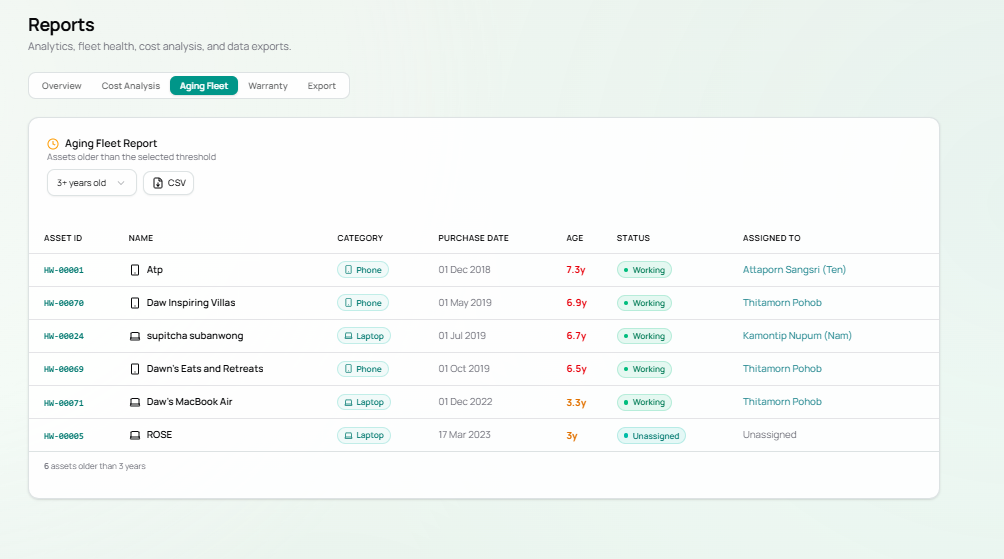
Section titled “Tab 3 — Aging Fleet”Identifies hardware that is past a configurable age threshold — useful for planning replacement cycles.
Age Filter
Section titled “Age Filter”Use the dropdown (default: 3+ years old) to adjust the threshold. Options typically include 1y, 2y, 3y, 5y+.
Aging Fleet Table
Section titled “Aging Fleet Table”| Column | Description |
|---|---|
| Asset ID | Clickable link to the asset detail |
| Name | Asset name |
| Category | Hardware type |
| Purchase Date | Original acquisition date |
| Age | Calculated age in years (highlighted red if significantly old) |
| Status | Working or Unassigned |
| Assigned To | Employee, or “Unassigned” |
Current Aging Fleet (3+ years)
Section titled “Current Aging Fleet (3+ years)”| Asset | Category | Age | Status | Assigned To |
|---|---|---|---|---|
| HW-00001 — Atp | Phone | 7.3y | Working | Attaporn Sangsri (Ten) |
| HW-00070 — Daw Inspiring Villas | Phone | 6.9y | Working | Thitamorn Pohob |
| HW-00024 — supitcha subanwong | Laptop | 6.7y | Working | Kamontip Nupum (Nam) |
| HW-00069 — Dawn’s Eats and Retreats | Phone | 6.5y | Working | Thitamorn Pohob |
| HW-00071 — Daw’s MacBook Air | Laptop | 3.3y | Working | Thitamorn Pohob |
| HW-00005 — ROSE | Laptop | 3y | Unassigned | — |
A CSV export is available for this report.
Tab 4 — Warranty
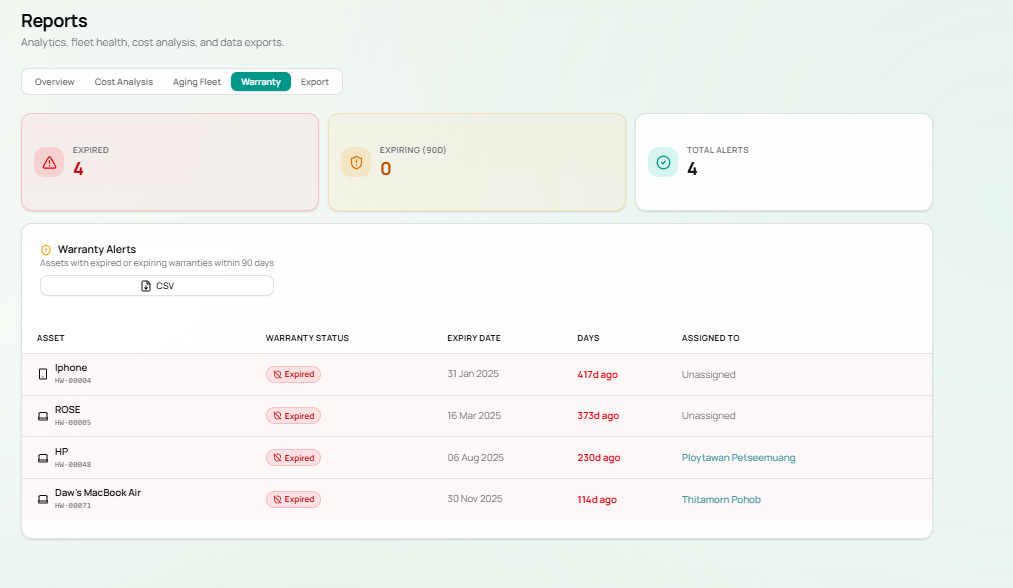
Section titled “Tab 4 — Warranty”Tracks all expired and expiring warranties to ensure timely renewal action.
Summary Cards
Section titled “Summary Cards”| Card | Value | Meaning |
|---|---|---|
| Expired | 4 | Assets whose warranty has already lapsed |
| Expiring (90D) | 0 | Assets expiring within the next 90 days |
| Total Alerts | 4 | Combined count requiring attention |
Warranty Alerts Table
Section titled “Warranty Alerts Table”Lists every asset with an expired or soon-to-expire warranty:
| Asset | Status | Expiry Date | Days Overdue | Assigned To |
|---|---|---|---|---|
| Iphone (HW-00004) | Expired | 31 Jan 2025 | 417d ago | Unassigned |
| ROSE (HW-00005) | Expired | 16 Mar 2025 | 373d ago | Unassigned |
| HP (HW-00048) | Expired | 06 Aug 2025 | 230d ago | Ploytawan Petseemuang |
| Daw’s MacBook Air (HW-00071) | Expired | 30 Nov 2025 | 114d ago | Thitamorn Pohob |
A CSV export is available to share with your procurement or IT team.
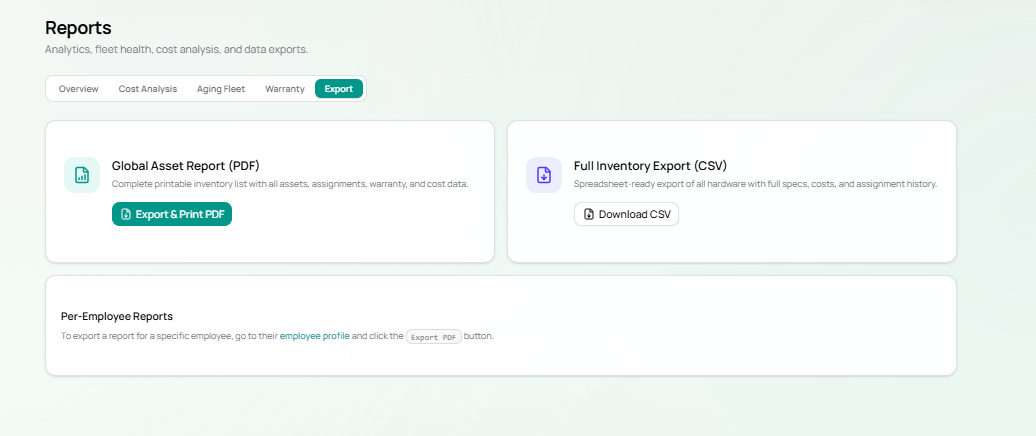
Tab 5 — Export
Section titled “Tab 5 — Export”Download the full asset database for offline use, printing, or sharing.
Export Options
Section titled “Export Options”| Export | Format | Contents |
|---|---|---|
| Global Asset Report | Complete printable inventory — all assets, assignments, warranty, and cost data. Click Export & Print PDF. | |
| Full Inventory Export | CSV | Spreadsheet-ready export — full specs, costs, and assignment history. Click Download CSV. |
| Per-Employee Report | Go to the individual employee profile and click the Export PDF button there. |
Workflow Diagram
Section titled “Workflow Diagram”flowchart LR A[Reports Page] --> B[Overview\nFleet summary] A --> C[Cost Analysis\nTHB investment] A --> D[Aging Fleet\nReplacement planning] A --> E[Warranty\nExpiry tracking] A --> F[Export\nPDF + CSV]
D -->|CSV| G[Download] E -->|CSV| G C -->|CSV| G F -->|PDF| H[Print / Share] F -->|CSV| G