Location Management
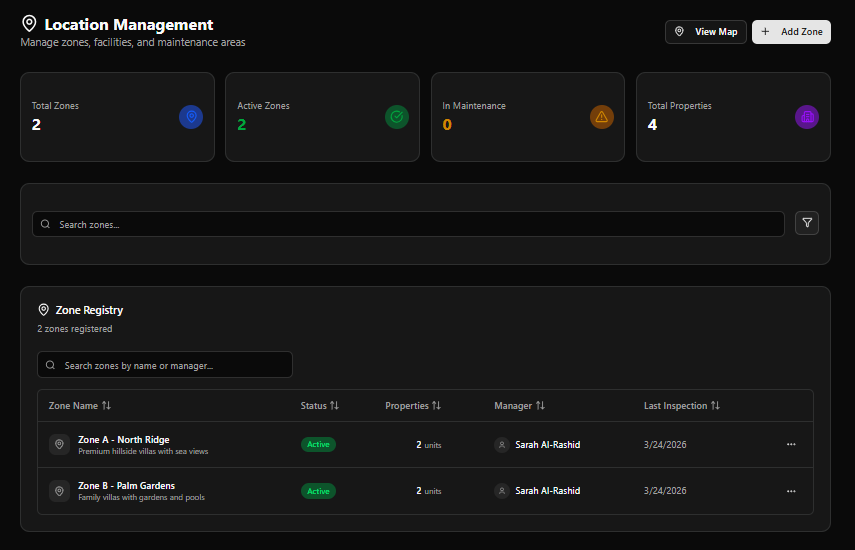
The Location Management module organises villa properties into zones — named geographic or operational areas (e.g. Zone A - North Ridge, Zone B - Palm Gardens). Each zone groups multiple villas, has an assigned manager, and provides a maintenance load overview.
Page Header
Section titled “Page Header”| Element | Description |
|---|---|
| Title | Location Management |
| Subtitle | Manage zones, facilities, and maintenance areas |
| View Map | Opens the map view of all zones and properties |
| + Add Zone | Opens the Create New Location form |
KPI Cards
Section titled “KPI Cards”| Card | Colour | Description |
|---|---|---|
| Total Zones | Blue | All registered zones |
| Active Zones | Green | Zones currently in active status |
| In Maintenance | Amber | Zones with properties under maintenance |
| Total Properties | Purple | Total villas across all zones |
Example values (live data): Total Zones: 2 · Active Zones: 2 · In Maintenance: 0 · Total Properties: 4
Search & Filter
Section titled “Search & Filter”| Control | Description |
|---|---|
| Search zones… | Full-text search across zone names and descriptions |
| Filter icon | Apply additional filters |
Zone Registry
Section titled “Zone Registry”The Zone Registry panel lists all registered zones with a secondary search field.
Table Columns
Section titled “Table Columns”| Column | Description |
|---|---|
| Zone Name | Zone name and description subtitle |
| Status | Active (green) or other status badge |
| Properties | Number of units / villas in this zone |
| Manager | Assigned area manager |
| Last Inspection | Date of last zone inspection |
| ⋯ | Row actions menu |
Current Zones (Example Data)
Section titled “Current Zones (Example Data)”| Zone | Description | Status | Properties | Manager | Last Inspection |
|---|---|---|---|---|---|
| Zone A - North Ridge | Premium hillside villas with sea views | Active | 2 units | Sarah Al-Rashid | 3/24/2026 |
| Zone B - Palm Gardens | Family villas with gardens and pools | Active | 2 units | Sarah Al-Rashid | 3/24/2026 |
Create New Location Form
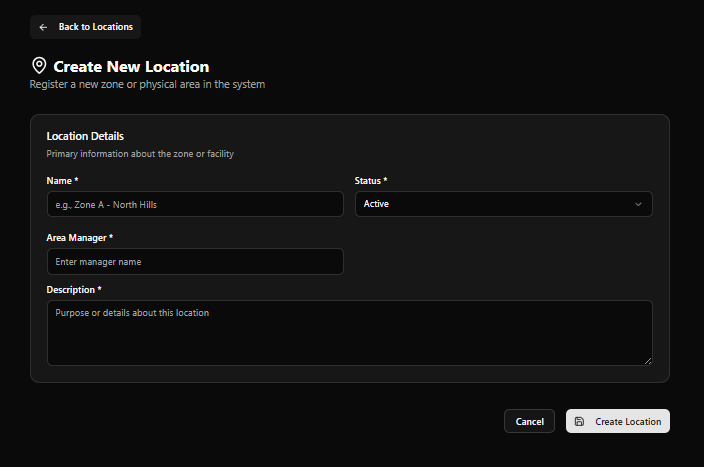
Section titled “Create New Location Form”Access via + Add Zone. Back link: ← Back to Locations
Title: Create New Location Subtitle: Register a new zone or physical area in the system
Location Details
Section titled “Location Details”Primary information about the zone or facility
| Field | Required | Notes |
|---|---|---|
| Name | Yes | e.g. Zone A - North Hills |
| Status | Yes | Default: Active |
| Area Manager | Yes | Enter manager name |
| Description | Yes | Purpose or details about this location |
Form Actions
Section titled “Form Actions”| Button | Action |
|---|---|
| Cancel | Discard and return to Location Management |
| Create Location | Save and register the zone |
Zone Detail Page
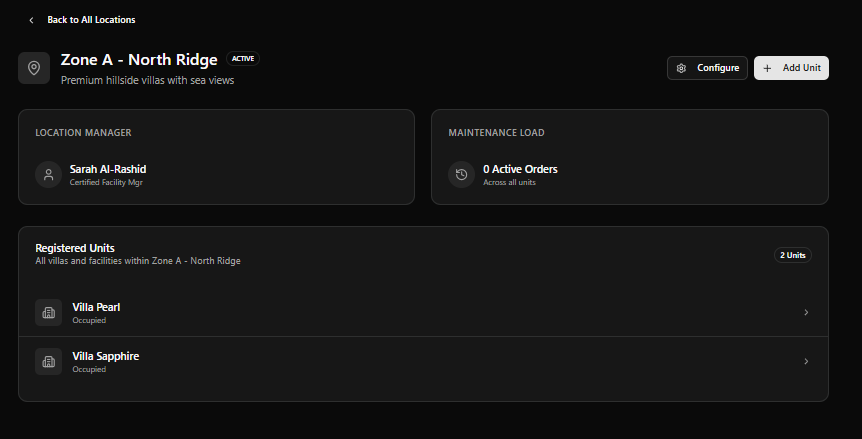
Section titled “Zone Detail Page”Click any zone row to open its detail page.
Page Header
Section titled “Page Header”| Element | Description |
|---|---|
| Zone Name | e.g. Zone A - North Ridge |
| ACTIVE badge | Current status |
| Subtitle | Zone description (e.g. Premium hillside villas with sea views) |
| Configure | Opens zone configuration settings |
| + Add Unit | Opens the Add Unit to Zone modal |
| Back link | ← Back to All Locations |
Location Manager Panel
Section titled “Location Manager Panel”| Field | Example |
|---|---|
| Manager Name | Sarah Al-Rashid |
| Role | Certified Facility Mgr |
Maintenance Load Panel
Section titled “Maintenance Load Panel”| Field | Example |
|---|---|
| Active Orders | 0 Active Orders |
| Scope | Across all units |
Registered Units
Section titled “Registered Units”Lists all villas and facilities within the zone.
| Element | Description |
|---|---|
| Section title | Registered Units |
| Subtitle | All villas and facilities within [Zone Name] |
| Unit count badge | e.g. 2 Units (top right) |
Each unit row shows:
- Villa icon
- Villa Name (e.g.
Villa Pearl) - Status (e.g.
Occupied) ›chevron to navigate to the villa detail page
Example — Zone A - North Ridge:
| Villa | Status |
|---|---|
| Villa Pearl | Occupied |
| Villa Sapphire | Occupied |
Add Unit to Zone Modal
Section titled “Add Unit to Zone Modal”Opened via the + Add Unit button on a zone detail page.
Title: Add Unit to Zone Subtitle: Select an existing unit and assign it to this zone.
| Field | Required | Notes |
|---|---|---|
| Search units | No | Search by name or address |
| Unit | Yes | Dropdown — Select a unit |
| Button | Action |
|---|---|
| Cancel | Close modal without changes |
| Add Unit | Assign the selected unit to this zone |
Units must already be registered in the system (via Villa Management) before they can be assigned to a zone.
Zone Setup Flow
Section titled “Zone Setup Flow”flowchart TD A[Click + Add Zone] --> B[Fill Location Details\nName · Status · Area Manager · Description] B --> C[Click Create Location\nZone appears in Zone Registry] C --> D[Open Zone Detail Page] D --> E[Click + Add Unit] E --> F[Search and select a villa] F --> G[Click Add Unit\nVilla assigned to zone] G --> H[Zone Registered Units\nupdated with new villa]