Employee Profile
Clicking any employee’s name in the Employees directory opens their full profile page.
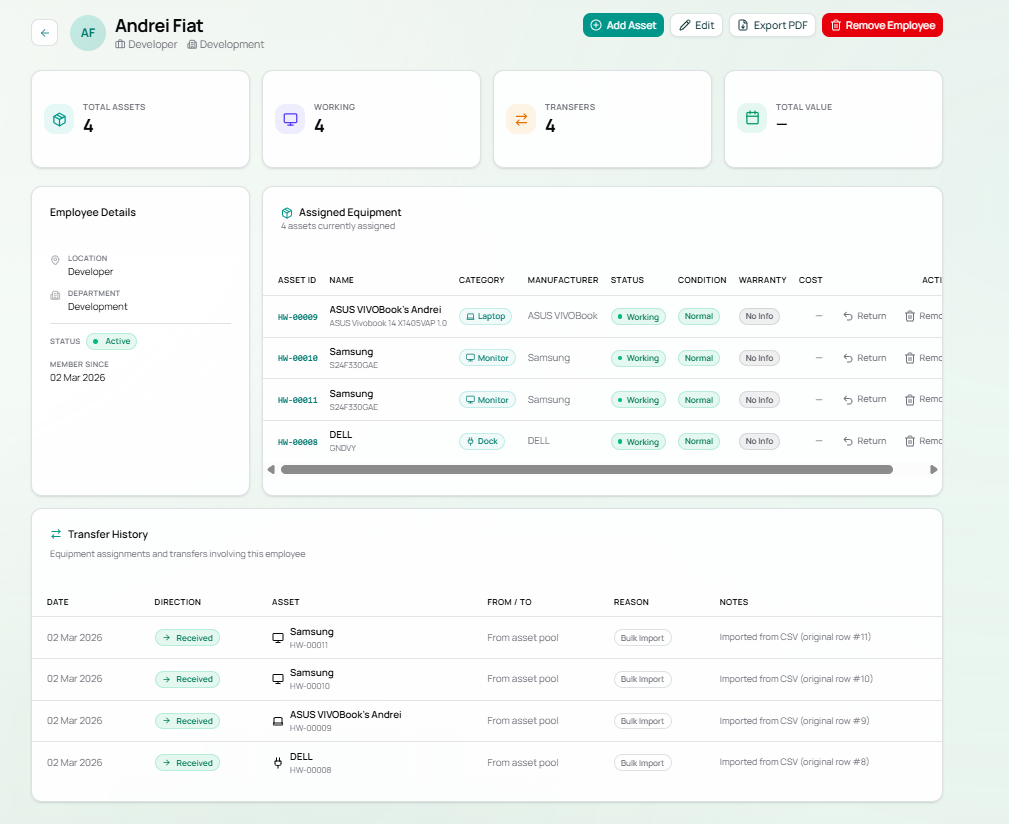
Header
Section titled “Header”The profile header displays:
- Employee avatar (initials-based, teal background)
- Full name, job role, and department
- Four action buttons (top right):
| Button | Action |
|---|---|
| + Add Asset | Open the Add Asset form with this employee pre-selected |
| Edit | Edit the employee’s profile details |
| Export PDF | Download a per-employee hardware report as PDF |
| Remove Employee | Delete this employee record (red — irreversible) |
Summary Cards
Section titled “Summary Cards”Four KPI cards at the top of the profile:
| Card | Description |
|---|---|
| Total Assets | Number of hardware items currently assigned |
| Working | Count of assigned assets with Working status |
| Transfers | Total number of asset assignment/transfer events |
| Total Value | Combined THB value of all assigned assets (shows — if costs not entered) |
Employee Details Panel
Section titled “Employee Details Panel”| Field | Description |
|---|---|
| Location | Office or work location (e.g. Phuket Office, Developer, Remote) |
| Department | Assigned department |
| Status | Active (green dot) or Inactive |
| Member Since | Date the employee record was created in M7 |
Assigned Equipment Table
Section titled “Assigned Equipment Table”Lists all hardware currently assigned to this employee.
| Column | Description |
|---|---|
| Asset ID | Clickable link — opens the individual asset detail page |
| Name | Asset name with model number below |
| Category | Hardware type badge |
| Manufacturer | Brand |
| Status | Working (green) |
| Condition | Physical condition (e.g. Normal) |
| Warranty | Active, Expired, or No Info |
| Cost | THB value, or — |
| Action | Return (sends asset back to pool) / Remove (deletes asset) |
Transfer History
Section titled “Transfer History”A full log of every asset movement involving this employee — both incoming and outgoing.
| Column | Description |
|---|---|
| Date | When the transfer occurred |
| Direction | Received (green badge) — asset came to this employee |
| Asset | Asset name and ID |
| From / To | Source or destination (e.g. From asset pool, or another employee’s name) |
| Reason | Transfer reason (e.g. New Assignment, Bulk Import) |
| Notes | Additional context (e.g. Imported from CSV (original row #11)) |
Profile Workflow
Section titled “Profile Workflow”flowchart TD A[Employees List] --> B[Click employee name] B --> C[Employee Profile] C --> D[View assigned equipment] C --> E[Click Add Asset → add hardware] C --> F[Click asset ID → open asset detail] C --> G[Return asset → back to pool] C --> H[Export PDF → per-employee report] C --> I[Edit → update profile details]Example Profile — Andrei Fiat
Section titled “Example Profile — Andrei Fiat”| Field | Value |
|---|---|
| Role | Developer |
| Department | Development |
| Status | Active |
| Member Since | 02 Mar 2026 |
| Total Assets | 4 (HW-00008, HW-00009, HW-00010, HW-00011) |
| Working | 4 |
| Transfers | 4 (all received via Bulk Import on 02 Mar 2026) |