Step 10 — Location & Attractions
Step 10 of 11 — Location & Local Attractions pins the villa on the map and lets you add nearby places of interest to create a personalised guest guidebook.
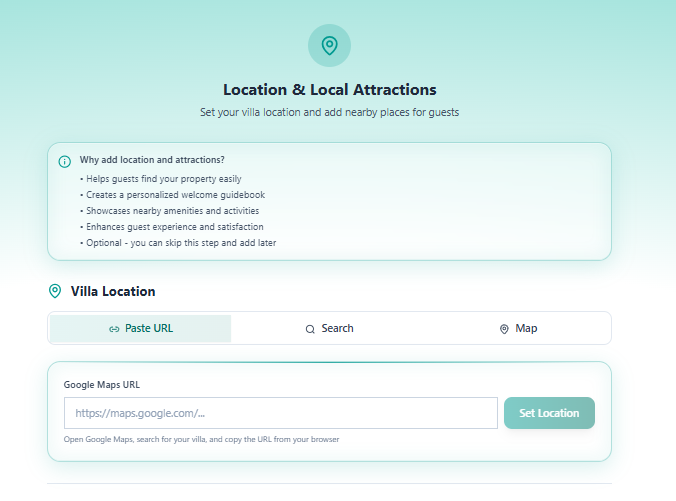
Why Add Location & Attractions?
Section titled “Why Add Location & Attractions?”
- Helps guests find your property easily
- Creates a personalised welcome guidebook
- Showcases nearby amenities and activities
- Enhances guest experience and satisfaction
- Optional — you can skip this step and add later
Section 1 — Villa Location
Section titled “Section 1 — Villa Location”Three ways to set the villa’s map location:
Tab A — Paste URL (recommended)
Section titled “Tab A — Paste URL (recommended)”| Field | Description |
|---|---|
| Google Maps URL | Paste the full URL from Google Maps |
| Set Location button | Extracts coordinates from the URL and pins the location |
How to get the URL:
- Open Google Maps in your browser
- Search for the villa address
- Copy the full URL from the browser address bar
- Paste it into the field and click Set Location
Tab B — Search
Section titled “Tab B — Search”Search for the property by name or address directly within the step.
Tab C — Map
Section titled “Tab C — Map”Drag a pin on an interactive map to set the precise location manually.
Section 2 — Local Attractions
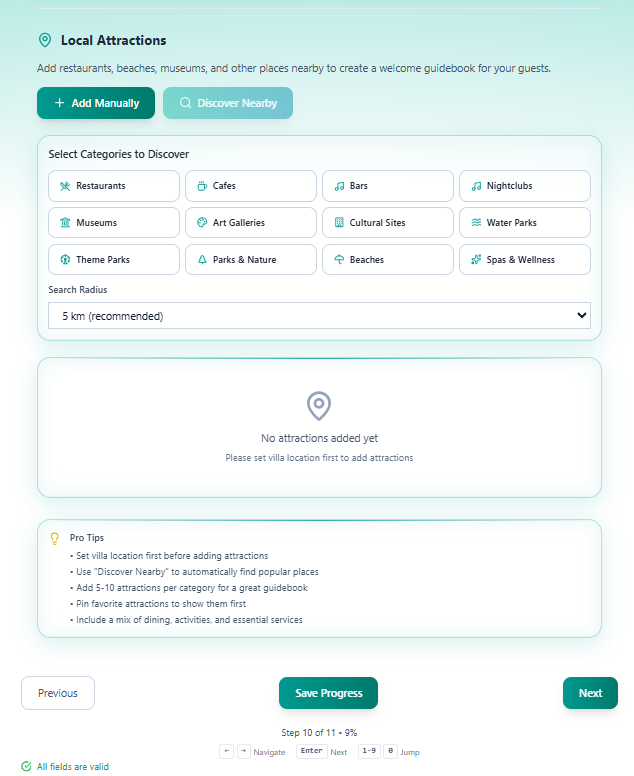
Section titled “Section 2 — Local Attractions”Add nearby restaurants, beaches, museums, and other points of interest to create a guest welcome guidebook.
Adding Attractions
Section titled “Adding Attractions”Two methods:
| Method | Description |
|---|---|
| + Add Manually | Enter a place name, category, address, and notes manually |
| Discover Nearby | Auto-discover popular nearby places using the villa’s set location |
Important: You must set the villa location (Section 1) before using Discover Nearby or manually adding attractions.
Discovery Categories
Section titled “Discovery Categories”Toggle any category to include it in the Discover Nearby search:
| Row 1 | Row 2 | Row 3 |
|---|---|---|
| Restaurants | Museums | Theme Parks |
| Cafes | Art Galleries | Parks & Nature |
| Bars | Cultural Sites | Beaches |
| Nightclubs | Water Parks | Spas & Wellness |
Search Radius
Section titled “Search Radius”Set how far to search for nearby places. Default: 5 km (recommended). Options range from 1 km to 20+ km.
Pro Tips
Section titled “Pro Tips”
- Set villa location first before adding attractions
- Use Discover Nearby to automatically find popular places
- Add 5–10 attractions per category for a great guidebook
- Pin favourite attractions to show them first
- Include a mix of dining, activities, and essential services
Navigation
Section titled “Navigation”| Control | Action |
|---|---|
| Previous | Return to Step 9 — Photo Upload |
| Save Progress | Save without advancing |
| Next | Advance to Step 11 — Review & Submit |
Proceed to Step 11 — Review & Submit.