Step 6 — Documents Upload
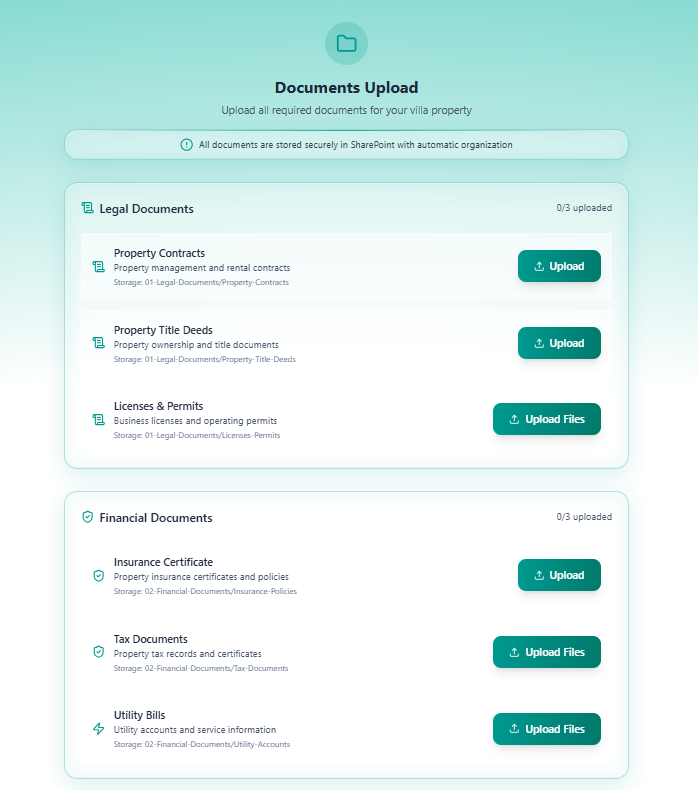
Step 6 of 11 — Documents Upload is where you upload all property-related documents. Files are automatically organised into a structured folder system in Microsoft SharePoint.
“All documents are stored securely in SharePoint with automatic organisation”
Document Categories
Section titled “Document Categories”There are 4 categories with 11 document slots in total. Each slot shows the SharePoint folder path where the file will be stored.
Category 1 — Legal Documents (0/3)
Section titled “Category 1 — Legal Documents (0/3)”| Document | Description | SharePoint Path |
|---|---|---|
| Property Contracts | Property management and rental contracts | 01-Legal-Documents/Property-Contracts |
| Property Title Deeds | Property ownership and title documents | 01-Legal-Documents/Property-Title-Deeds |
| Licenses & Permits | Business licenses and operating permits | 01-Legal-Documents/Licenses-Permits |
Category 2 — Financial Documents (0/3)
Section titled “Category 2 — Financial Documents (0/3)”| Document | Description | SharePoint Path |
|---|---|---|
| Insurance Certificate | Property insurance certificates and policies | 02-Financial-Documents/Insurance-Policies |
| Tax Documents | Property tax records and certificates | 02-Financial-Documents/Tax-Documents |
| Utility Bills | Utility accounts and service information | 02-Financial-Documents/Utility-Accounts |
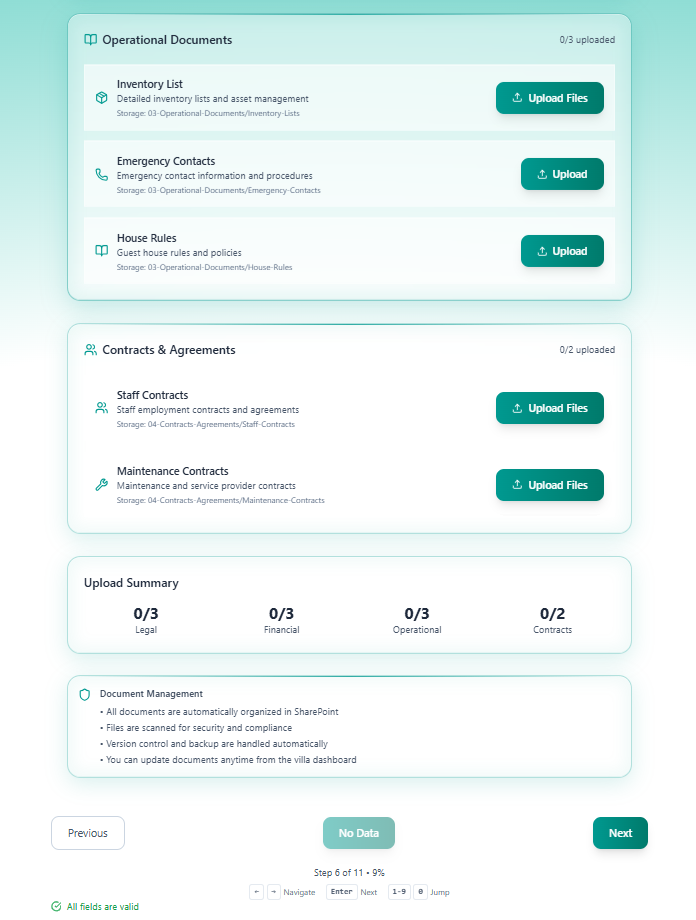
Category 3 — Operational Documents (0/3)
Section titled “Category 3 — Operational Documents (0/3)”| Document | Description | SharePoint Path |
|---|---|---|
| Inventory List | Detailed inventory lists and asset management | 03-Operational-Documents/Inventory-Lists |
| Emergency Contacts | Emergency contact information and procedures | 03-Operational-Documents/Emergency-Contacts |
| House Rules | Guest house rules and policies | 03-Operational-Documents/House-Rules |
Category 4 — Contracts & Agreements (0/2)
Section titled “Category 4 — Contracts & Agreements (0/2)”| Document | Description | SharePoint Path |
|---|---|---|
| Staff Contracts | Staff employment contracts and agreements | 04-Contracts-Agreements/Staff-Contracts |
| Maintenance Contracts | Maintenance and service provider contracts | 04-Contracts-Agreements/Maintenance-Contracts |
Upload Summary
Section titled “Upload Summary”A summary bar at the bottom of the page tracks progress across all categories:
| Category | Slots |
|---|---|
| Legal | 0/3 |
| Financial | 0/3 |
| Operational | 0/3 |
| Contracts | 0/2 |
How Uploads Work
Section titled “How Uploads Work”Click the Upload or Upload Files button on any document slot to select a file from your computer. Multiple files can be uploaded per slot.
The SharePoint folder structure is created automatically the first time a file is uploaded for a villa. You do not need to create folders manually.
flowchart LR A[Click Upload] --> B[Select file from computer] B --> C[File sent to Nitro backend] C --> D{SharePoint folder exists?} D -->|No| E[Create folder structure automatically] D -->|Yes| F[Upload file to existing folder] E --> F F --> G[File stored in SharePoint] G --> H[Upload count increments]Document Management Rules
Section titled “Document Management Rules”
- All documents are automatically organised in SharePoint
- Files are scanned for security and compliance
- Version control and backup are handled automatically
- You can update documents anytime from the villa dashboard after onboarding
Navigation
Section titled “Navigation”| Control | Action |
|---|---|
| Previous | Return to Step 5 — Account Credentials |
| No Data / Save Progress | Saves state — shows “No Data” if nothing uploaded yet |
| Next | Advance to Step 7 — Staff Configuration |
Note: This step is optional — you can click Next without uploading any documents and complete them later from the villa profile.
Proceed to Step 7 — Staff Configuration.