Asset Assignments
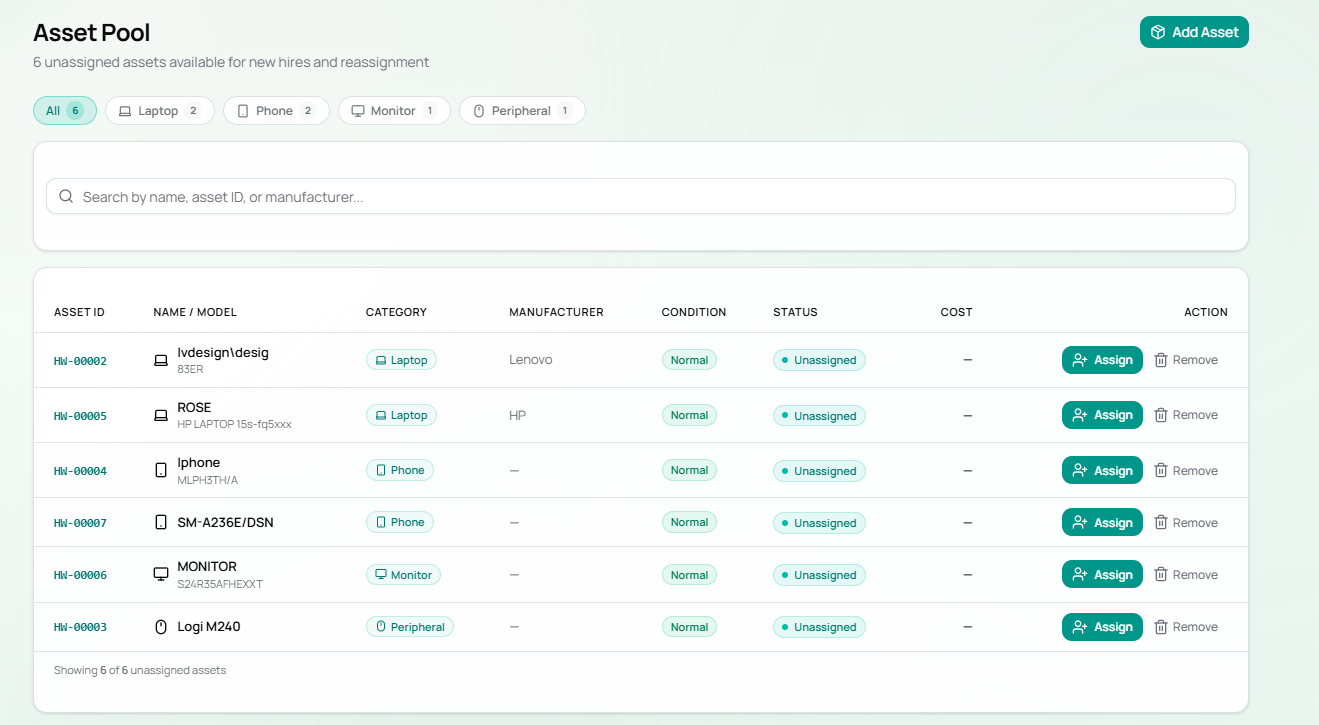
An assignment is the link between a hardware asset and an employee. Every asset in M7 is either assigned to someone or sitting in the Asset Pool (unassigned).
Assignment States
Section titled “Assignment States”stateDiagram-v2 [*] --> AssetPool : Asset created (unassigned) AssetPool --> Assigned : Assign to employee Assigned --> AssetPool : Return / unassign Assigned --> Assigned : Reassign to different employeeAssigning an Asset
Section titled “Assigning an Asset”There are two ways to assign an asset:
From the Asset Pool page
Section titled “From the Asset Pool page”- Go to Asset Pool in the top navigation
- Find the asset in the list
- Click the Assign button (teal) on the right
- Select the employee from the dropdown
- Confirm the assignment
During asset creation (Add Asset form)
Section titled “During asset creation (Add Asset form)”- Fill in the asset details
- In the Assignment section, select an employee from the Assign to Employee dropdown
- Optionally set Department and Location
- Click Create Asset — the asset is created and assigned simultaneously
Unassigning / Returning an Asset
Section titled “Unassigning / Returning an Asset”To move an asset back to the Asset Pool:
- Open the asset detail (click the asset ID in the Assets table)
- Edit the assignment field and set it to Unassigned (Asset Pool)
- Save — the asset will appear in the Asset Pool
Assignment Fields
Section titled “Assignment Fields”When assigning an asset, the following fields are recorded:
| Field | Description |
|---|---|
| Assign to Employee | The staff member receiving the asset |
| Department | Department (auto-filled from employee, can be overridden) |
| Location | Physical location (e.g. Office Floor 3, Remote, Warehouse) |
Viewing an Employee’s Assets
Section titled “Viewing an Employee’s Assets”On the Employees page, each row shows an Assets count badge. Click the employee name to open their profile and see all assigned hardware.